1
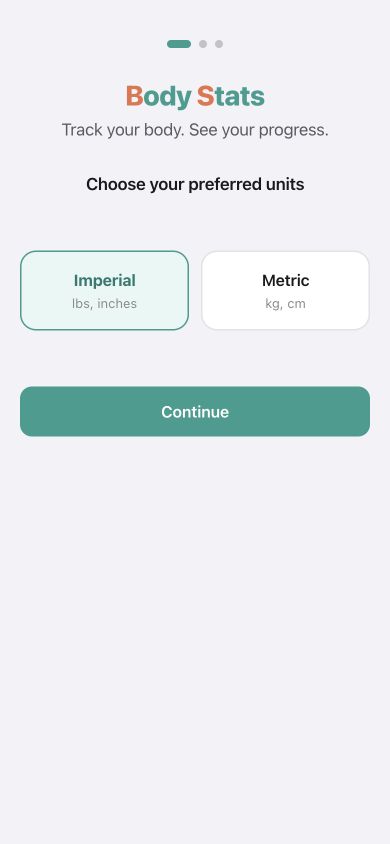
Choose your preferred units
Select Imperial for pounds and inches or Metric for kilograms and centimeters. You can change this later in Settings.
Choose your units, select the measurements that matter to you, and record your first entry.
No account · Your body data stays on your device
No BS. Just Body Stats
Open Body Stats on your iPhone. The app will guide you through these choices before you begin logging.
Select Imperial for pounds and inches or Metric for kilograms and centimeters. You can change this later in Settings.
Height, date of birth, and sex help Body Stats calculate BMI, estimated body-fat percentage, and body-composition ranges.
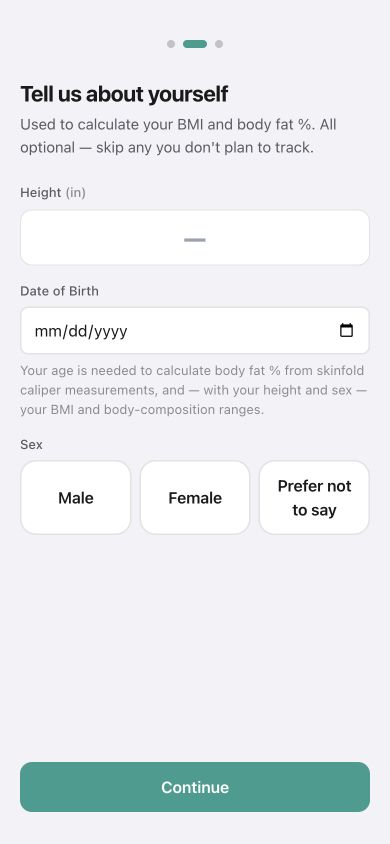
Prefer not to enter these details? They are optional. Body Stats can still track your measurements, but some calculations will be unavailable.
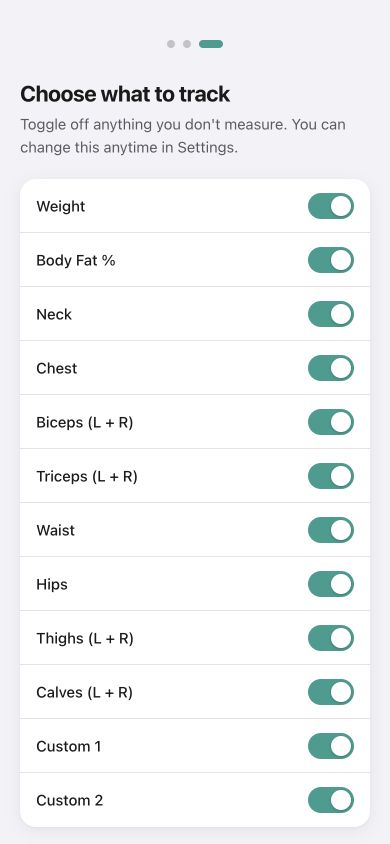
Turn off measurements you do not use, then tap Start Tracking. You can change the list at any time in Settings.
After setup, Body Stats opens the Log screen and shows a short first-entry guide.
Choose any measurement you want to record.
Enter the measurement, then tap Log.
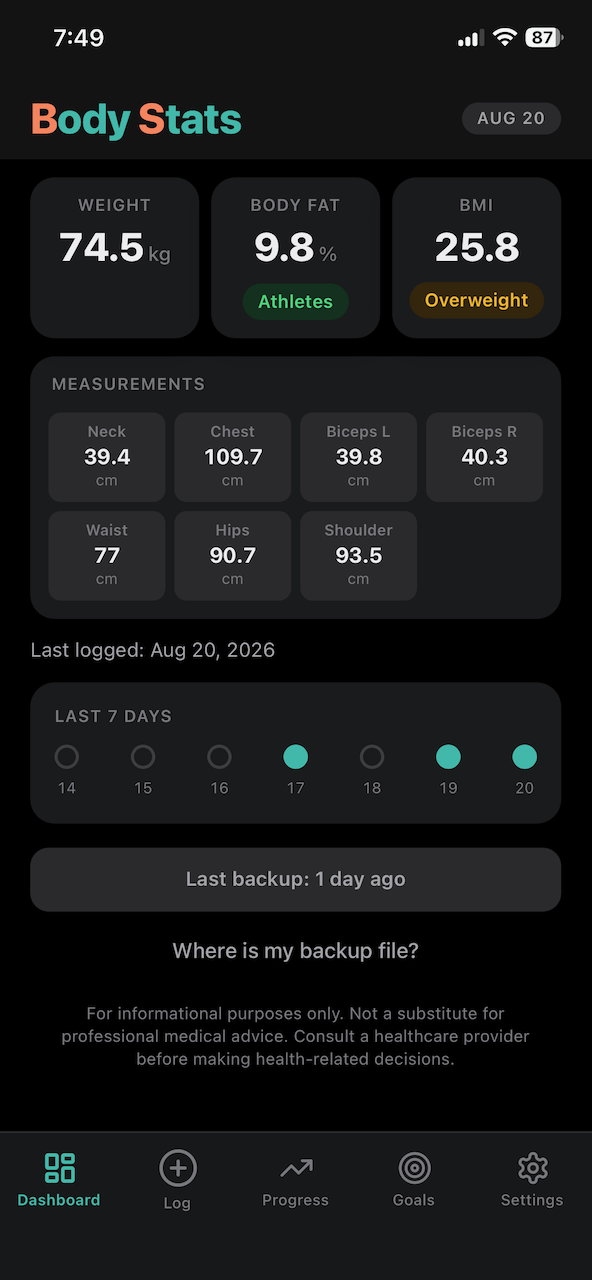
Open Dashboard when you are finished to see your first snapshot.
See your latest measurements and recent activity at a glance.
Add measurements and notes for any date.
Review changes over time with charts and history.
Set targets and see whether your latest change is moving toward them.
Change units, profile details, tracked measurements, appearance, and data options.
Body Stats keeps private recovery copies inside the app, and you can also export a portable backup file that you control.
After your data changes, Body Stats keeps up to five rolling recovery copies in private app storage. In Settings, you can use Restore Previous Recovery Copy if you need to return to an earlier state.
Open Settings, tap Export Portable Backup, then choose Save to Files and a location such as iCloud Drive. This file can restore or move your data.
Export a fresh portable backup first. Private recovery copies stay with the app and can disappear when it is deleted. iPhone may include them in a device backup, depending on your iCloud Backup settings and restore behavior.
CSV is for spreadsheets: a CSV export is useful for reading measurements elsewhere, but it is not a complete restorable backup.